Fall Alert Device
Copyright © Quectel Wireless Solutions Co., Ltd. 2026. All rights reserved.
This application is built on the Quectel Pi M2 smart mainboard, uses a USB camera for real-time human pose recognition, and runs YOLOv8-Pose together with a multi-person fall classifier to automatically detect whether the user has fallen.
The project continuously captures frames from the camera. When a fall event is detected, it triggers a local alarm and pushes a notification to the phone, where the user can review the captured fall image through the APK. It can serve as a reference implementation for elderly/patient safety monitoring and fall early-warning systems.
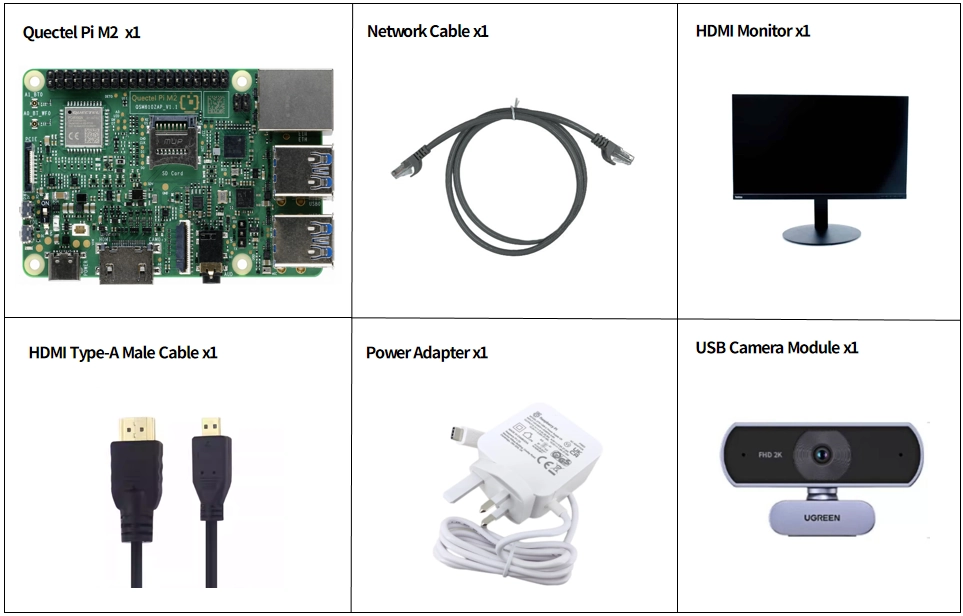
Development Accessories List
Accessory |
Quantity |
Specifications |
|---|---|---|
Quectel Pi M1 Smart Single-Board Computer |
1 |
- |
USB-C Power Cable & Charger |
1 |
27W USB Type-C Charger, 1.2m Cable, CN Standard, PD Power Supply for Raspberry Pi 5 |
HDMI Type-A Male Cable |
1 |
HDMI 2.0; cable length 1 m; connectors: HDMI-A (male) to HDMI-A (male) |
Ethernet Cable |
1 |
Length: 1m; Speed: Gigabit |
USB Camera Module |
1 |
UGREEN HD USB Camera with Microphone (2K 4MP Auto Focus) |
Display |
1 |
24-inch HDMI Monitor |
USB Stereo Camera |
1 |
Recommended resolution: 2560×720 (1280×720 per lens); Output format: YUYV/MJPG |
Accessories Reference Photo
Quick Start
Development Preparation
The Quectel Pi M2 Smart Mainboard ships with a pre-installed Debian 13 system image, so there is no need to reflash the OS. Just follow the steps below.
Hardware Connection
Complete all hardware connections by following these steps (the step numbers match the labels in the interface diagram):
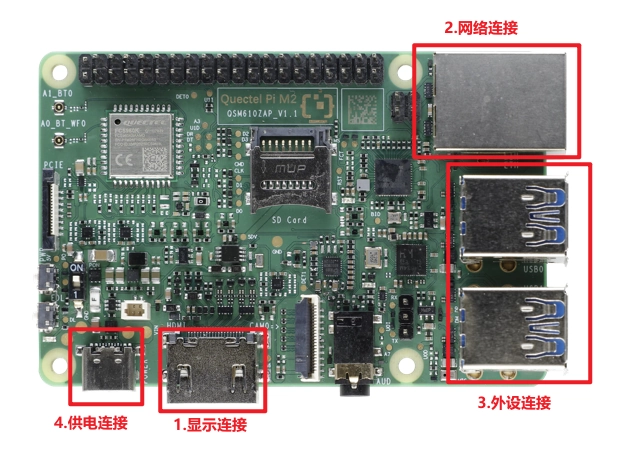
Display connection: Plug one end of the HDMI cable into the HDMI port on the smart mainboard, and the other end into the HDMI port on the monitor.
Network connection: Make sure your router is connected to the Internet. Then plug one end of the Ethernet cable into the Gigabit Ethernet port on the smart mainboard, and the other end into an Ethernet port on the router.
Input device connection: Connect USB peripherals such as the keyboard, mouse, and USB camera to the USB ports on the smart mainboard. If you use wireless input devices, plug their receiver into the USB port of an external hub.
Power connection: Plug the USB-A end of the power cable into the output port of the power adapter, and the USB-C end into the power input port on the smart mainboard (usually labeled POWER IN).
Project Implementation
Prerequisites
Once you have a network connection, open a terminal and execute the following command:
sudo apt update && sudo apt install -y python3-pip libatlas-base-dev libjasper-dev
This command updates the software sources and installs the libraries required by the project, including:
libatlas-base-dev and libjasper-dev: dependencies for the scientific computing libraries;
python3-pip: the Python package manager, used to install project dependencies.
Get the Code
Unzip the archive onto the device.
Install Python Dependencies
pip install -r requirements.txt
Dependency description:
PySide6: Python bindings for Qt6, used to build the graphical user interface.
opencv-python: OpenCV image processing library, used for camera capture and image processing.
ultralytics: YOLOv8 object detection framework, used for human keypoint detection.
numpy: numerical computing library, used for matrix operations and feature extraction.
scikit-learn: machine learning library, used to provide the random forest classifier.
joblib: serialization library, used to load the pre-trained model.
Prepare Model Files
The fall detection application needs to preload the following model files; please place them under the model/ directory:
yolov8n-pose.pt – YOLOv8-Nano Pose model, used to detect 17 human keypoints.
fall_multi_person_model.pkl – Random Forest classifier, used to determine whether a fall has occurred.
feature_scaler_multi.pkl – Feature scaler, used to standardize the input features.
You can obtain these model files as follows:
yolov8n-pose.pt: download from the Ultralytics official GitHub or let the code download it automatically.
fall_multi_person_model.pkl and feature_scaler_multi.pkl are already placed under the model directory.
Run the Application
After preparing the models, run the main program:
cd src
python3 main.py
Once the program starts, a graphical interface will be displayed, providing the following features:
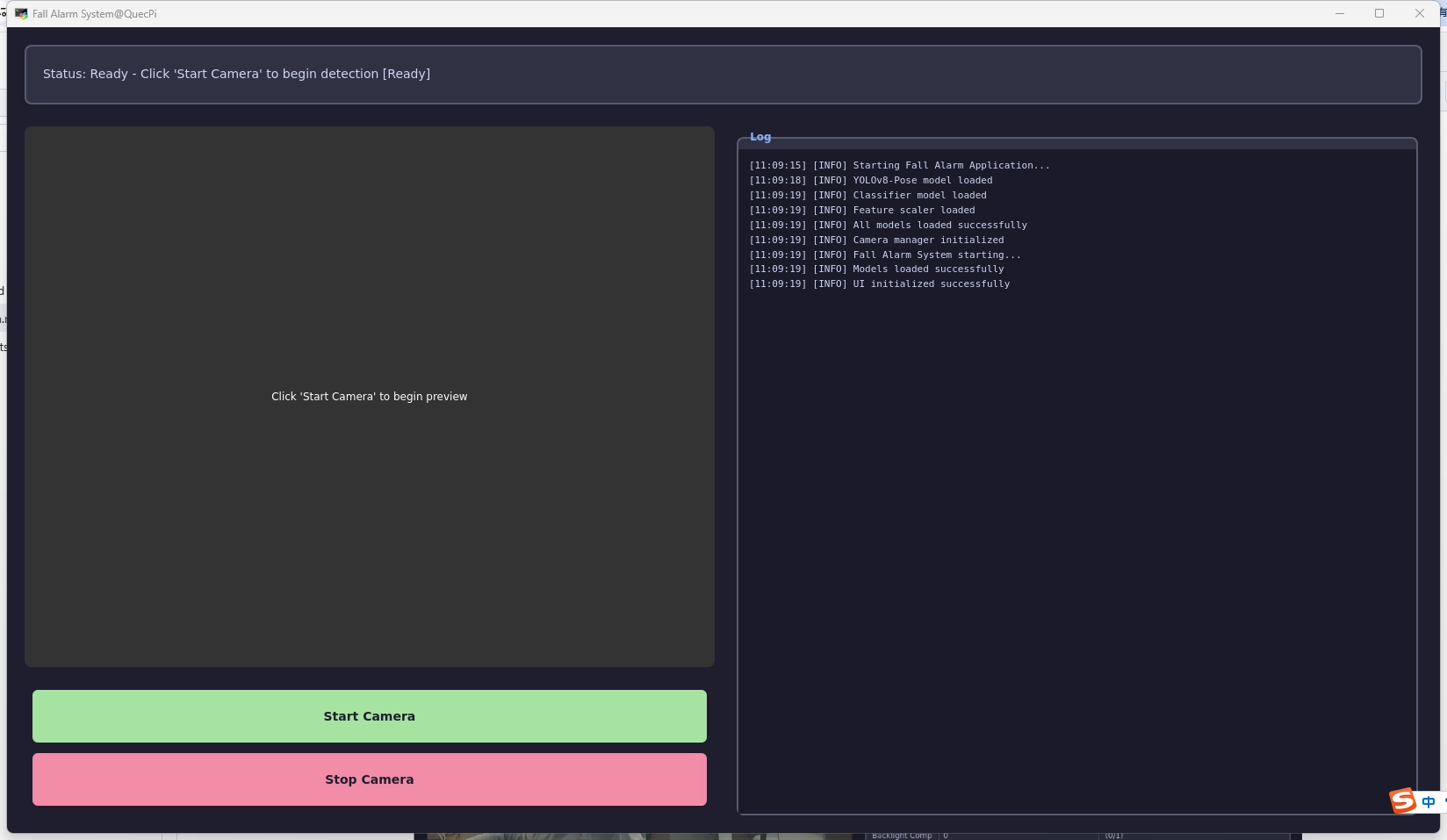
Feature Interface Description
[电子表格]
Log Display Area
The right-hand panel outputs runtime log messages, including:
Model loading logs: shows whether the YOLOv8 model and the classifier loaded successfully.
Detection logs: shows the number of detected persons and the fall status.
Alert logs: shows fall alerts and image upload status.
Real-time Detection Parameters
The program uses the following parameters for fall detection (adjust according to your actual needs):
[电子表格]
Fall Detection Principle
Keypoint Detection
The application uses the YOLOv8-Pose model to detect 17 human keypoints:
0: Nose           1: Left Eye      2: Right Eye    3: Left Ear    4: Right Ear
5: Left Shoulder  6: Right Shoulder 7: Left Elbow   8: Right Elbow 9: Left Wrist
10: Right Wrist   11: Left Hip      12: Right Hip   13: Left Knee   14: Right Knee
15: Left Ankle    16: Right Ankle
Feature Extraction
The following features are extracted from the keypoints for classification:
Keypoint coordinates: (x, y) coordinates and confidences of the 17 keypoints, 51 dimensions in total.
Body angles: angles between 8 pairs of keypoints, 8 dimensions in total.
Relative coordinates: coordinates relative to the hip center, 26 dimensions in total.
Body shape: body height, width, and height-to-width ratio, 3 dimensions in total.
Fall Determination Logic
The application uses multiple methods to determine whether a fall has occurred:
# Feature extraction and classification
features = detector.extract_features(keypoints, confidences)
if scaler is available:
    features_scaled = scaler.transform(features)
else:
    features_scaled = features

# Get classifier prediction
probabilities = classifier.predict_proba(features_scaled)
is_falling = probabilities[0, 1] > FALL_MIN_CONFIDENCE  # Class 1 means a fall
# Confirmation frame counting (to reduce false positives)
if is_falling:
    fall_count += 1
    if fall_count >= FALL_CONFIRM_FRAMES:
        trigger_alarm()
Decision criteria:
The Random Forest classifier probability is greater than 0.75 and a fall is detected for 3 consecutive frames, OR
Body angle is greater than 55° AND the height-to-width ratio is greater than 1.2.
Alert and Review
When a fall is detected, the application will:
Trigger the alarm light: send flashing and alarm commands to the alarm-light device via the serial port.
Save the alert image: save a JPEG image with a timestamp under the
picture/directory.Upload to the server: upload the alert image to the specified server address.
Upload URL: (you can replace the server address and upload endpoint as needed)
Asynchronous background upload is supported and does not block the main program.
View on the APK: receive fall notifications in real time on the APK and view the alert images.
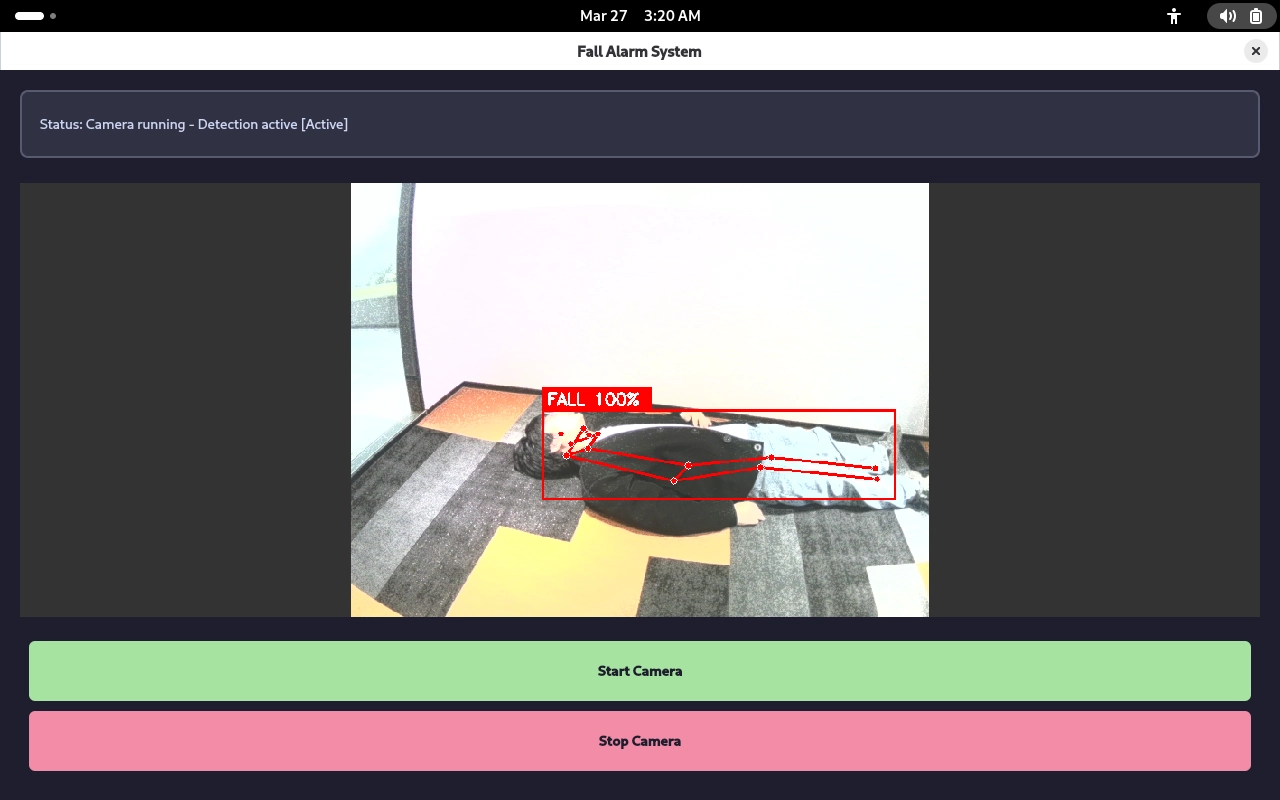
Application Demo
FAQ & Solutions
Code Modifications
Device is missing pip
Debian 13 does not ship with pip or venv by default. You need to install them manually and configure a virtual environment.
adb shell "apt-get install -y python3-pip python3-venv"
int('-camera0') causes camera enumeration to crash
Symptom:
ValueError: invalid literal for int() with base 10: '-camera0'
This is because there is a symlink on the RK3576 platform device. Modify the code as follows:
def _video_index(path):
    """Extract an integer index from /dev/videoN; return None for invalid names."""
    suffix = os.path.basename(path).replace("video", "")
    return int(suffix) if suffix.isdigit() else None

# Skip symlinks (e.g., /dev/video-camera0 -> video51) and only take real nodes.
devices = [d for d in glob.glob("/dev/video*") if not os.path.islink(d)]
devices = [(i, d) for i, d in ((_video_index(d), d) for d in devices) if i is not None]
devices.sort(key=lambda x: x[0])
pip pulls 4 GB+ of CUDA PyTorch
⚠️ The most common and most costly pitfall.
Symptom
When running pip install -r requirements.txt, pip starts pulling a long list of NVIDIA-related packages:
cuda-toolkit==13.0.3
nvidia-cudnn-cu13==9.24.0.43
nvidia-nccl-cu13==2.30.7
nvidia-nvshmem-cu13==3.4.5
nvidia-cublas / cufft / cusolver / cusparse / curand / cufile / cupti
triton~=3.8.0
...
Cause
ultralytics depends on torch>=1.8.0. The default torch wheel on PyPI is the CUDA build, whose dependencies (via the cuda-toolkit[...] meta package) are pulled in unconditionally when platform_system == "Linux".
Impact: The device has no NVIDIA GPU, so these packages:
Sum to over 4 GB
Are extremely large on aarch64; download and extraction take a very long time
Are completely useless (
torch.cuda.is_available()is stillFalse)
Solution
Explicitly specify the PyTorch CPU index, and install torch first, then the remaining dependencies:
# Step 1: install the CPU version (~159 MB instead of 4 GB+)
.venv/bin/python -m pip install torch torchvision \
    --index-url https://download.pytorch.org/whl/cpu

# Step 2: install the remaining dependencies (torch is already satisfied and will not trigger CUDA)
.venv/bin/python -m pip install -r requirements.txt
Verify that the index contains an aarch64 build
curl -s https://download.pytorch.org/whl/cpu/torch/ \
  | grep -oE 'torch-[0-9.]+%2Bcpu-cp313-cp313-manylinux[0-9_]+_aarch64\.whl' | sort -u | tail -5
Verified as available:
torch-2.9.1+cpu-cp313-cp313-manylinux_2_28_aarch64.whl
torch-2.14.0+cpu-cp313-cp313-manylinux_2_28_aarch64.whl   ← actually installed
torchvision-0.29.0+cpu-cp313-cp313-manylinux_2_28_aarch64.whl
Final result
torch       : 2.14.0+cpu | CUDA: False
torchvision : 0.29.0+cpu
The install log contains **nonvidia-***packages at all, only nvidia-ml-py (a lightweight pure-Python dependency of ultralytics, ~100 KB; it has no effect).
Model Loading Issues
Model files not found
Symptom:
ERROR - Pose model not found: /path/to/model/yolov8n-pose.pt
ERROR - Classifier model not found: /path/to/model/fall_multi_person_model.pkl
Solution:
Make sure
yolov8n-pose.pt,fall_multi_person_model.pkl, andfeature_scaler_multi.pklare all placed under themodel/directory.Check that the file paths are correct; test with an absolute path.
On first run, you can let the program download the YOLOv8 model automatically (network connection required).
Camera Issues
Camera not detected
Symptom:
Warning: No available cameras detected
Solution:
Check that the camera is correctly connected to a USB port.
Use the following commands to check whether the camera is recognized:
# Linux
ls -la /dev/video*

# Use v4l2-ctl to list cameras
v4l2-ctl --list-devices
Try a different USB port.
If it still does not work, use a powered USB hub.
Check whether camera drivers need to be installed.
Camera frame stutter or high latency
Symptom:
Detected frame latency exceeds 1 second, or the camera preview is not smooth
Cause analysis:
Camera resolution is too high, leading to processing delay.
CPU utilization is too high.
Network upload blocks the main thread.
Solution:
Lower the camera resolution (use 1280×720 or lower).
Adjust
DETECT_INTERVALto increase the detection interval:
DETECT_INTERVAL = 0.25 # Increase from 0.15 to 0.25 seconds
Lower
YOLO_IMG_SIZEto speed up inference:
YOLO_IMG_SIZE = 320 # Can be lowered to 256
Disable server upload for local testing.
Fall Detection Issues
High false-positive rate (normal actions detected as falls)
Symptom:
Users who are bending over, sitting down, or lying down to rest are misdetected as having fallen
Solution:
Tune the classifier confidence threshold: raising the threshold reduces false positives.
FALL_MIN_CONFIDENCE = 0.80 # Increase from 0.75 to 0.80
Increase the confirmation frame count: only trigger when falls are detected in multiple consecutive frames.
FALL_CONFIRM_FRAMES = 5 # Increase from 3 to 5
Tune the angle and ratio thresholds:
FALL_BODY_ANGLE_THRESHOLD = 65  # Increase the angle threshold
FALL_HEIGHT_RATIO_THRESHOLD = 1.4  # Increase the height-to-width threshold
Retrain the classifier with more diverse training data:
Add negative samples such as sitting down and bending over.
Ensure diversity in the fall samples (different angles, speeds, persons).
Increase the training dataset size.
High miss rate (real falls not detected)
Symptom:
No alert is raised when an actual fall occurs
Solution:
Lower the classifier confidence threshold:
FALL_MIN_CONFIDENCE = 0.65 # Decrease from 0.75 to 0.65
Lower the confirmation frame count:
FALL_CONFIRM_FRAMES = 2 # Decrease from 3 to 2
Check keypoint detection quality:
# Increase the keypoint requirement or lower the confidence threshold
MIN_CONFIDENCE = 0.3  # Decrease from 0.4
MIN_KEYPOINTS = 8     # Decrease from 10
Optimize the camera viewpoint: make sure the camera can see the whole body.
Place the camera 1–3 meters from the user.
Mount the camera at a height of 1.5–2 meters.
Avoid side-on or nearly vertical angles.
Improve lighting:
Provide sufficient light; avoid shadows and backlight.
Use even ambient lighting rather than a strong local spotlight.
Alert and Upload Issues
Alarm light does not turn on
Symptom:
A fall is detected but the alarm light does not come on
Solution:
Check that the serial port is connected correctly.
Verify that the alarm light device is working.
Check the serial port configuration in
light_control.py:
port = '/dev/ttyUSB0'        # Modify based on your actual device
baudrate = 9600              # Modify based on the device specification
Check the serial port permissions:
sudo chmod 666 /dev/ttyUSB0
Debug according to the documentation of the alarm light you purchased; make sure the command format sent is correct.
Image upload failed
Symptom:
ERROR - Upload failed: fall_20240326_143022.jpg
Cause analysis:
Unstable network connection.
Wrong server address or server unavailable.
Request timeout.
Solution:
Check the network connection:
ping SERVER_IP.Verify the server is running:
curl <server URL>.Check that the firewall allows outbound connections.
Modify the server address:
SERVER_IP = "your.server.ip"
Performance Optimization Issues
High CPU utilization
Symptom:
CPU utilization > 80% while the app is running; the system is sluggish
Solution:
Lower the detection frequency (increase
DETECT_INTERVAL).Reduce the video resolution (640×480 or lower).
Disable real-time log display or reduce the log update frequency.
Use GPU acceleration (if supported by the hardware).
Memory leak causes continuous growth in usage
Symptom:
Memory usage grows from 200 MB to 1 GB after the app runs for several hours
Solution:
Check whether you create unreleased objects inside loops.
Periodically clear the log buffer:
if len(LogManager._logs) > 100:
    LogManager.clear_logs()
Make sure threads are correctly closed.
Use a memory profiler to detect leaks:
python3 -m memory_profiler.